Home

WITHS 소개

기술이 빠르게 발전하고 사용자의 요구가 다양해지는 가운데, 다후아 WITHS는 스마트하고 간편하며 사용 목적에 충실한 영상보안의 새로운 기준을 제시합니다. 누구나 편리하게 영상보안 기술을 활용할 수 있도록 설계했습니다.

WITHS는 중소규모 사업장의 다양한 요구를 위해 개발한 다후아의 스마트 영상보안 시리즈입니다. 보안 성능과 사용 편의성을 함께 고려해 간편한 설치, 직관적인 조작, 기존 업무 환경과의 원활한 연동을 지원합니다. 일상 업무를 방해하지 않으면서 사업장을 보호합니다.

최신 무선 기술을 적용한 WITHS 카메라는 복잡한 배선과 설치 부담을 줄여 간편한 보안 시스템 구축을 지원합니다. 소규모 매장, 창고, 성장하는 사무실 등 다양한 환경에 맞춰 사용할 수 있습니다. 주요 기능에 AI를 적용해 단순한 모니터링을 넘어 상황을 사전에 파악하고, 원활하게 소통하며, 효과적으로 대응할 수 있도록 돕습니다.

모든 기능은 간편함, 신뢰성, 사용자 제어라는 실제 요구를 바탕으로 설계했습니다. 자체 개발한 AI 알고리즘이 정밀한 분석을 수행하고, 사용자에게 명확하고 필요한 정보와 결과를 제공합니다.

핵심 요소

간편한 설치

최신 무선 기술을 적용한 WITHS 카메라는 간편한 설치로 손쉽게 보안 시스템을 구축할 수 있도록 지원합니다.

스마트한 감지

WITHS 카메라는 AI로 기본적인 모니터링을 넘어 상황을 미리 파악하고, 원활하게 소통하며, 효과적으로 대응할 수 있도록 돕습니다.

안전한 연결

WITHS 카메라는 무단 접근을 방지하고 데이터와 네트워크 연결을 안전하게 보호합니다.

인기 제품

3MP Indoor Fixed-focal Wi-Fi Pan & Tilt Network Camera
3+3MP Indoor Wi-Fi Dual-Lens Pan & Tilt Camera
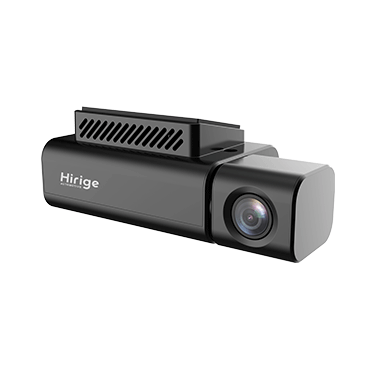
5+5MP Outdoor Wi-Fi Dual-Lens Pan & Tilt Camera
4MP Outdoor Wizcolor Fixed-focal 4G Pan & Tilt Network
4MP Outdoor Fixed-focal 4G Battery Pan & Tilt Network Camera

사용 방법 영상

감지 영역 설정 방법
푸시 알림 설정 방법
차량 감지 설정 방법
간편 동기화 방법
프라이버시 모드 설정 방법
프리셋 순찰 설정 방법
원터치 통화 사용 방법
듀얼 렌즈 화면 보기 방법
듀얼 렌즈 스마트 설정 방법
4G 장치 추가 방법
작동 모드 전환 방법
배터리 관리 방법
작동 시간 설정 방법
자동 추적 설정 방법
더 보기

자주 묻는 질문

1. Ensure that the device is upgraded to the latest version.
2. After the upgrade, the live view will display overlay information about the battery status. You can determine the charging condition by observing the displayed current value.
When the sun is at its peak, usually around noon, place the device in direct sunlight and adjust the angle of the solar panel to be as close to vertical as possible to the sun. At this time, monitor the real-time current value. If the real-time current is positive, it indicates that the solar-powered components are functioning normally. At this point, leave the device online via 4G, connect it to the DMSS, and let it stay in sleep mode for a few hours. Then, wake it up and check if the battery percentage has increased, which can indicate whether it is charging properly.
The SIM card size is Micro SIM or Nano SIM. In high-temperature areas, we recommend you use M2M SIM cards, as retail SIM cards may deform or get damaged in high heat.
● Some SIM cards require a PIN unlock to be used.
● For devices that support the webpage, check whether the card's APN and other settings have been configured correctly.
● Confirm with your operator whether the device's IMEI needs to be registered.
Check with your operator to confirm whether the SIM card is tied to the device's IMEI (for example, whether there is a device-SIM binding) If so, unbind it.
1. Check if the device has powered on successfully, if not, we recommend you troubleshoot the power supply or consider repair.
● For PTZ devices: PTZ's self-test upon powering on indicates the device is on.
● For other devices: The illuminated power indicator indicates the device is on.
2. Check if the indicator light is slowly flashing green. If not, the device is not in network configuration. We recommend you press and hold the reset button to restore factory settings and go through the network configuration process again.
더 보기